IBO Player Setup Guide

IBO Player is the exclusive app used with your TVAzure IPTV subscription. It is available on virtually every platform and operating system. This guide covers installation on all major devices and how to add your TVAzure playlist.
IBO Player IPTV application banner

What is IBO Player?

IBO Player is a feature-rich IPTV media player created by IBODEV. Its smooth playback, intuitive interface and broad device support make it a popular choice among IPTV users worldwide. Key advantages include cross-platform availability (Android, iOS, Windows, macOS, Fire OS, LG WebOS, Samsung Tizen) and remote playlist management.

Install on Android Phones & Tablets
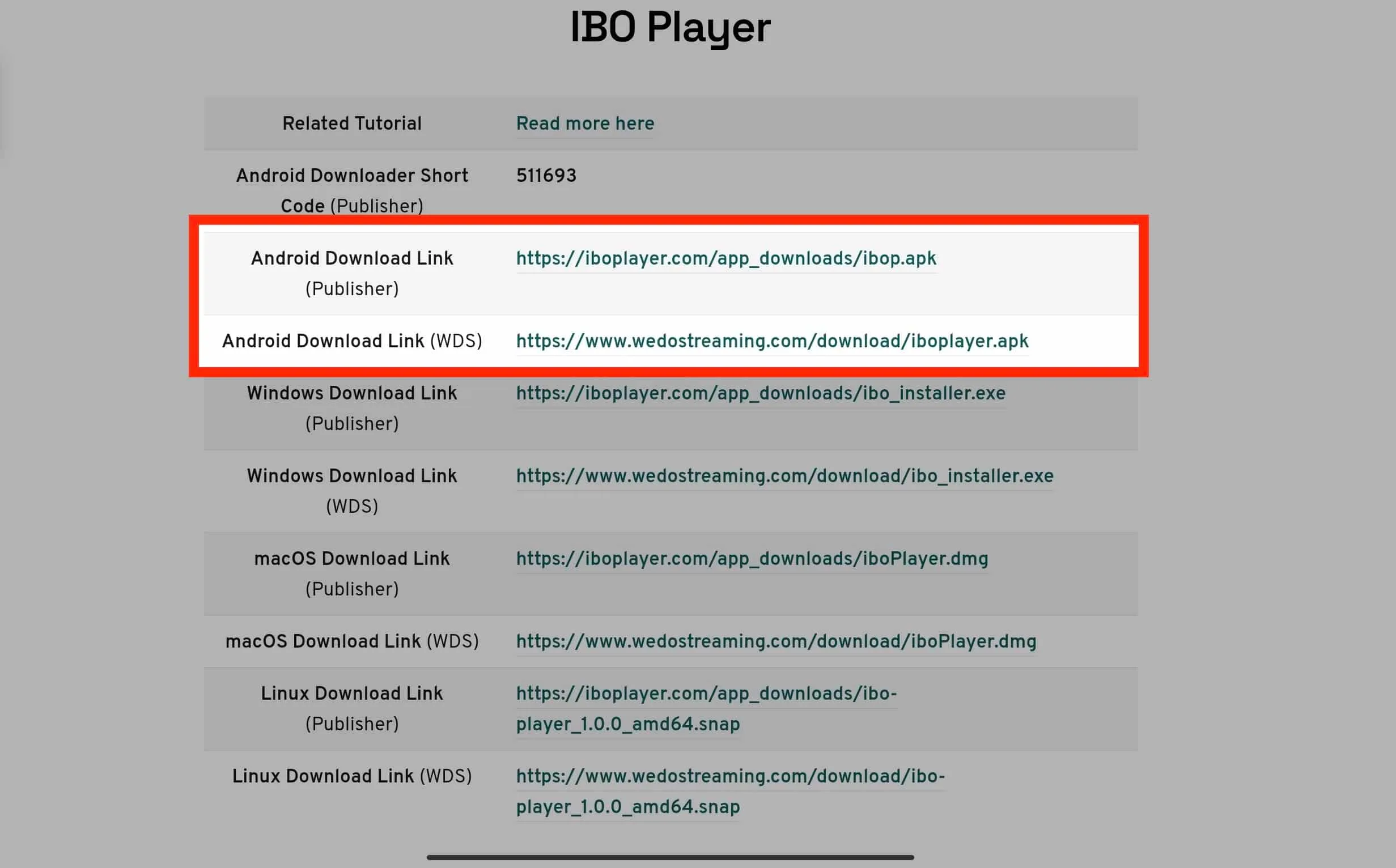
Step 1: Download the IBO Player APK from the official IBODEV website or our download centre.
Step 2: If prompted about an unknown source, tap "Download Anyway" -- the file is safe.
Step 3: Open the downloaded file and tap "Install".
Step 4: Launch IBO Player. You will see an introductory screen with your device MAC address and key. Note these down for playlist activation.
IBO Player installed on Android tablet

Install on Amazon Fire TV Stick

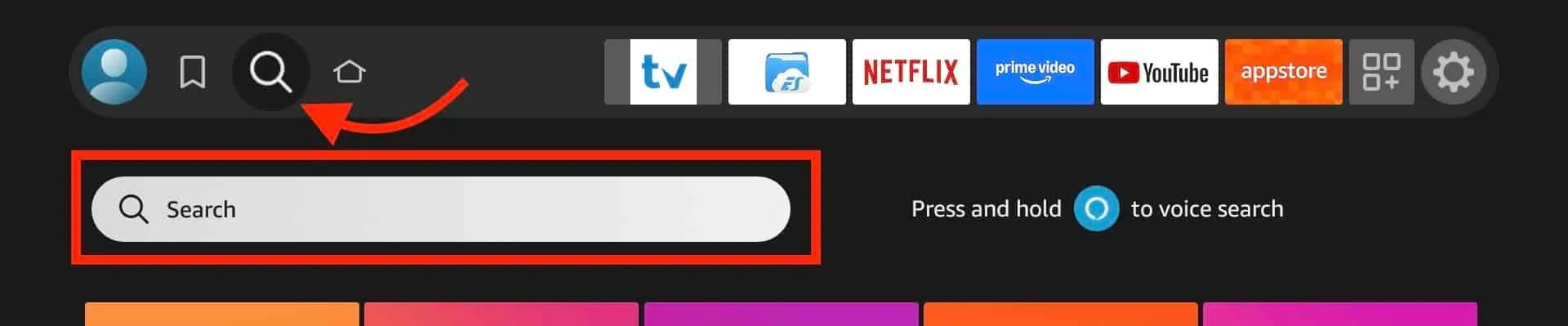
Step 1: From the Firestick home screen, open the search icon and search for "Downloader".
Step 2: Install and open the Downloader app. Grant it media access when prompted.
Step 3: In Downloader, navigate to the search field and enter the code 511693. Tap "Go".
Step 4: IBO Player will download automatically. If prompted about unknown apps, go to Settings > Install Unknown Apps > Downloader > ON.
Step 5: Complete the installation. IBO Player is now ready on your Firestick.
IBO Player on Amazon Fire TV Stick

Install on Windows PC
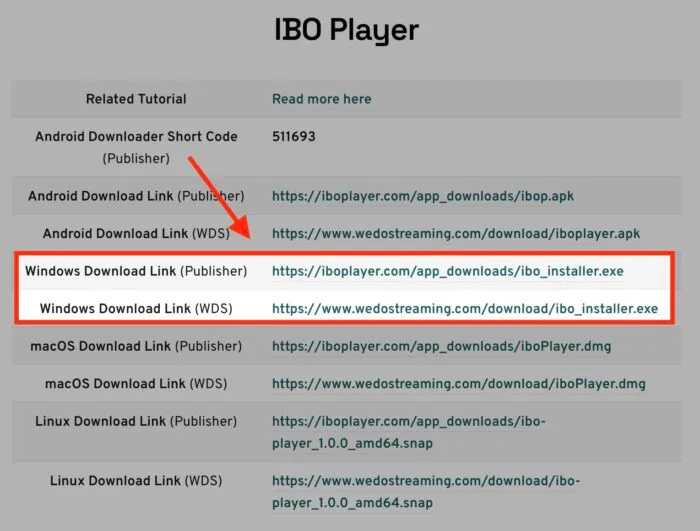
Step 1: Download the Windows installer from the IBODEV website. Requires Windows 10 or later (64-bit).
Step 2: Windows Defender may block it. Click "More Info" then "Run Anyway".
Step 3: Follow the setup wizard: Next > choose desktop shortcut > Install > Finish.
IBO Player running on Windows

Install on macOS

Step 1: Download the macOS version from the IBODEV website.
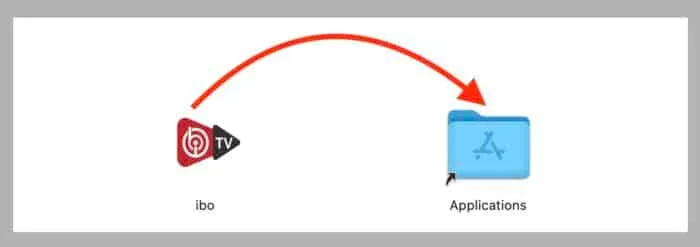
Step 2: Open the DMG file and drag the IBO Player icon into Applications.
Step 3: If macOS blocks the app, go to System Settings > Privacy & Security and click "Open Anyway".
IBO Player on macOS

Install on LG & Samsung Smart TV
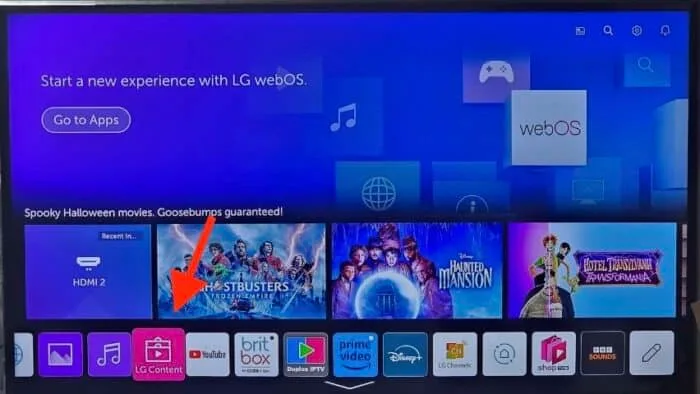
Step 1: Open your TV's app store (LG Content Store or Samsung Apps).
Step 2: Search for "IBO Player" using the search icon.
Step 3: Select the correct app (look for "Ibo Player" specifically) and click Install.
Step 4: Launch the app once installation completes.
IBO Player installed on LG Smart TV

How to Add Your TVAzure Playlist

IBO Player uses remote playlist activation. You add your IPTV credentials through the IBO Player website, and the data syncs to your device automatically.

  1. Visit the IBO Player official website and click "Manage Playlist" from the top menu.
  2. Open IBO Player on your device and tap the person icon on the dashboard. Note your MAC Address and Device Key from Device Info.
  3. Enter these details on the website form and click Login.
  4. Click "Add Playlist". Enter a name for your playlist and paste your TVAzure streaming URL into the "Playlist URL" field.
  5. Click Save. Your channels and VOD content will appear in the app within seconds.
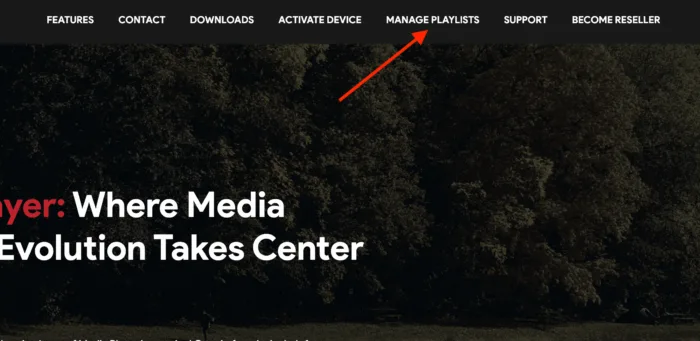
Adding a playlist to IBO Player

Need Help?

If you encounter any difficulties during setup, our support team is available 24/7 to assist you. Contact us via WhatsApp or email and we will guide you through the process.

Get Your Subscription